


Image Processing Script Documentation

Using BAT and Photoshop scripts to automate bulk image processing for e-commerce.
Objective:
The purpose of this script is to automate the process of fetching images from a server, organising them into different folders, and then processing them using Photoshop scripts. Specifically, the script performs the following tasks:
- Copies images from a specified server location.
- Organises the copied images into different folders based on certain criteria.
- Runs Photoshop scripts to convert the images to specific dimensions, colour profiles, and file formats.
Components:
1. Copying Images:
The script begins by setting variables such as copyfrom, folder, and SKUs.
copyfrom: Specifies the source location from which images will be copied. This is typically a network path (\\server2\graphics\IMAGES\HIGH RES RGB).
folder: Specifies the destination folder where images will be organised.
SKUs: Specifies a list of image filenames or patterns to be copied. These patterns can include wildcard characters such as *, allowing for the selection of multiple files based on a common pattern.
2. Image Copy Process:
The ROBOCOPY command is used to copy images from the specified source location (%copyfrom%) to the destination folder (D:\imagepull\%folder%\RGB).
/r:3 /w:3: Specifies retry and wait times in case of any errors during the copy process.
/LOG:D:\%folder%-LOG.txt: Logs the copy process to a text file for reference.
3. Image Processing:
If the copy process is successful (if “%ERRORLEVEL%”==”0”), the script proceeds to further process the copied images.
It organises the copied images into subfolders for different processing tasks, including:
- 1000×1000: Folder for images resized to 1000×1000 pixels.
- 2000×2000: Folder for images resized to 2000×2000 pixels.
- CMYK: Folder for images converted to CMYK colour profile.
The robocopy command is used to copy images from the original RGB folder to the newly created folders (1000×1000, 2000×2000, CMYK) while preserving the directory structure (/E).
Subsequently, Photoshop scripts (1000×1000.exe, 2000×2000.exe, CMYK.exe, Clip-to-PNG.exe) are executed to perform specific image processing tasks on the images in each folder:
- 1000×1000.exe: Resizes images to 1000×1000 pixels.
- 2000×2000.exe: Resizes images to 2000×2000 pixels.
- CMYK.exe: Converts images to CMYK colour profile.
- Clip-to-PNG.exe: Converts images to PNG file format.
Each Photoshop script is executed using the start command, specifying the executable path and the folder containing images as arguments.
4. Error Handling:
If the copy process fails, the script prints “failed” to the console.
The script pauses execution (Pause) to keep the console window open for review and exits (Exit).
Usage:
To use this script, replace placeholders such as \\server2\graphics\IMAGES\HIGH RES RGB with the appropriate source location and ensure that Photoshop scripts (1000×1000.exe, 2000×2000.exe, CMYK.exe, Clip-to-PNG.exe) exist in the specified locations (C:\Users\Public).
Execute the script in a Windows environment to automate the image processing tasks.
Notes:
Ensure that appropriate permissions are set for accessing the source and destination locations, as well as executing the Photoshop scripts.
Review the log file (%folder%-LOG.txt) for any errors or issues encountered during the image copying process.
The Script:
@echo off
set "copyfrom=\server2\graphics\IMAGES\HIGH RES RGB"
set "folder=bigtest"
set "SKUs=33011.jpg 9580010.jpg 9580007.jpg 9580020.jpg 9580021.jpg 9580016.jpg 9580017.jpg 9580022.jpg 9580023.jpg 9580024.jpg GW63320.jpg GW63321.jpg GW63322.jpg GW63323.jpg 9584241.jpg 9584244.jpg 9584245.jpg 9584246.jpg 9584247.jpg 9584248.jpg POS528.jpg POS529.jpg LT173.jpg LT176.jpg LT177.jpg LT178.jpg SYSDSB*.jpg"
ROBOCOPY "%copyfrom%" "D:\imagepull\%folder%\RGB" %SKUs% /r:3 /w:3 /LOG:D:\%folder%-LOG.txt

robocopy "D:\imagepull\%folder%\RGB" "D:\imagepull\%folder%\1000x1000" /E
robocopy "D:\imagepull\%folder%\RGB" "D:\imagepull\%folder%\2000x2000" /E
robocopy "D:\imagepull\%folder%\RGB" "D:\imagepull\%folder%\CMYK" /E

start "" "C:\Users\Public\1000x1000.exe" "D:\imagepull\%folder%\1000x1000\"
start "" "C:\Users\Public\2000x2000.exe" "D:\imagepull\%folder%\2000x2000\"
start "" "C:\Users\Public\CMYK.exe" "D:\imagepull\%folder%\CMYK\"
start "" "C:\Users\Public\Clip-to-PNG.exe" "D:\imagepull\%folder%\rgb\"

Pause
Exit
Automating SKU Code Formatting with Google Sheets
To streamline the process of generating the list of image filenames (SKUs), you can utilise Google Sheets to automate the addition of “*.jpg” to product SKU codes. Here’s how you can set it up:
1. Create a Google Sheet:
Begin by creating a new Google Sheet in Google Drive.
2. Enter Product SKU Codes:
In a column, paste or enter the product SKU codes for which you need to generate the image filenames.
3. Apply Formula to Append “*.jpg”:
In an adjacent column, apply a formula to concatenate the SKU codes with “*.jpg”.
Assuming SKU codes are in column A, you can use a formula like:
=A1 & ".jpg"Drag the fill handle of the cell with the formula down to apply it to all SKU codes.
4. Copy Formatted SKUs:
Once the formula is applied, the adjacent column will contain the formatted SKUs with “*.jpg” appended to each code.
5. Copy and Paste Formatted SKUs:
Select the column containing the formatted SKUs and copy them.
Paste the copied SKUs into your batch script (SKUs variable) in place of the manually entered list.
This will dynamically generate the list of image filenames based on the product SKU codes entered in the Google Sheet.
Example:
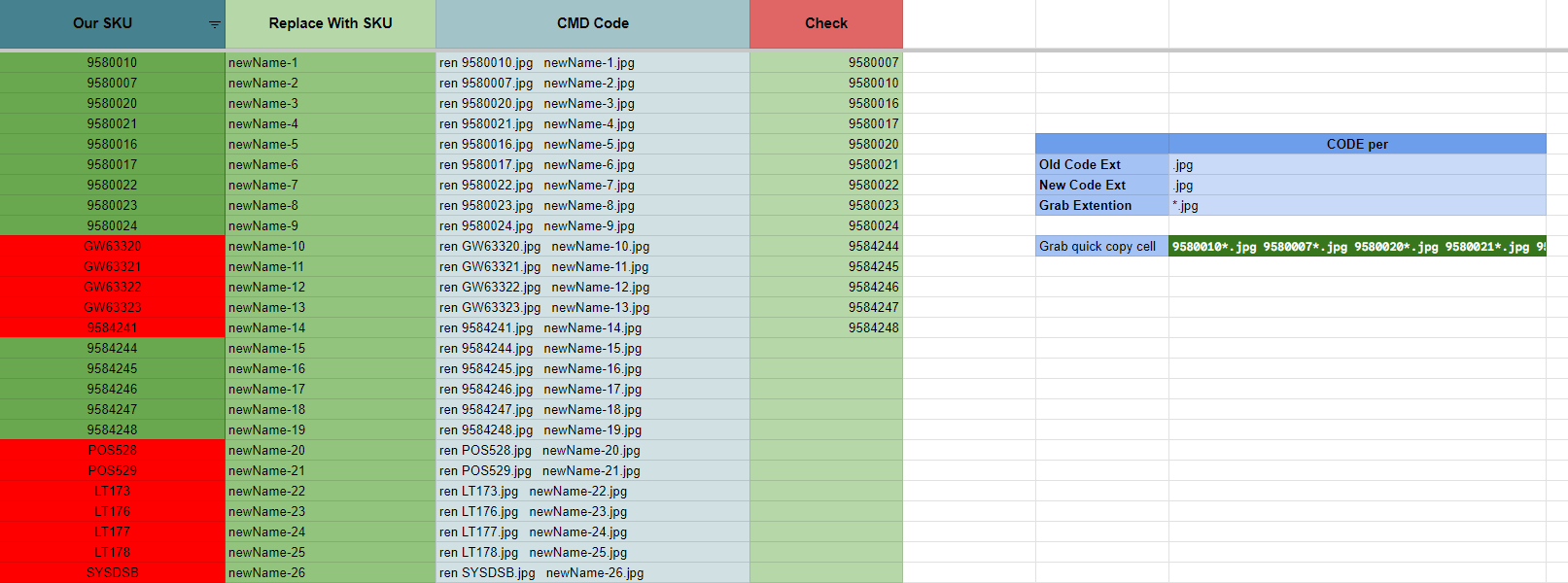
On this sheet I have added some extra functionality. In the first column I paste the SKUs for all the images I require. I can then change the extension in the “Grab Extension” cell. In this example I use the wildcard *.jpg. The “Quick copy cell” then automatically populates with all of the codes in one line making it easer to add to the BAT. I have also added renaming to this sheet where I can add the new name for each SKU and it will output a ren command. CMD can be run in the image location and this command can be executed by simply pasting the content of the “CMD code” column.
Finally I have added a Check column. Here I paste a list of images that have been copied and I use conditional formatting to show what images I’m missing from my original list.
Benefits:
Using Google Sheets to generate formatted SKUs offers flexibility and efficiency.
It allows for easy modification and updating of SKU lists.
Automating this process reduces the chance of manual errors and saves time when preparing the batch script.